Can You Upgrade RAM on a Laptop Heres the Full Guide

Yes, you can upgrade RAM on a laptop in most cases, but it depends on your model and design. This guide covers everything from checking compatibility and choosing the right SODIMM module to installing new memory yourself. Learn how a simple memory upgrade can boost your laptop speed and multitasking ability without breaking the bank.
Can you upgrade RAM on a laptop? The short answer is yes, but there are a few things you need to know first. Upgrading your laptop memory can breathe new life into a slow machine. It is one of the easiest and most affordable ways to improve performance. Many people assume their laptop is stuck with the memory it came with, but that is not always true.
Some laptops let you swap out old RAM for newer, faster modules. Others have memory soldered to the motherboard, which means no upgrades are possible. This guide will walk you through everything you need to know. You will learn how to check compatibility, pick the right RAM, and install it yourself with confidence.
Key Takeaways
- Most laptops allow RAM upgrades: Check your model first to confirm it has accessible slots or soldered memory.
- SODIMM modules are the standard: Laptops use smaller memory sticks called SODIMMs, not desktop DIMMs.
- DDR4 is the most common type: Newer laptops may use DDR5, so always match your RAM generation.
- 8GB to 16GB is the sweet spot: Most users see a big performance boost with 16GB of RAM.
- Always match RAM speed and type: Mixing incompatible modules can cause errors or failure to boot.
- Installation takes under 30 minutes: With basic tools and care, you can upgrade laptop RAM yourself at home.
📑 Table of Contents
Can You Upgrade RAM on a Laptop?
The answer depends on your specific model. Upgrading RAM on a laptop is straightforward for many popular brands. Brands like Dell, HP, Lenovo, and Asus often design their laptops with accessible RAM slots. However, ultra-thin and convertible models sometimes seal the memory inside the device. The first step is always confirming whether your machine allows upgrades before spending any money.
Why People Upgrade Laptop Memory
There are several reasons users choose to upgrade their laptop memory. Running multiple apps at once becomes smoother. Video editing and gaming perform better. Even basic tasks like browsing with many tabs feel faster. A memory upgrade costs much less than buying a new laptop, making it a smart investment for anyone looking to extend the life of their device.
When Upgrading Is Not Possible
Some laptops have all their memory soldered directly to the board. Apple MacBook Air and MacBook Pro models from recent years fall into this category. Thin devices like the Microsoft Surface Laptop also often lack upgradeable RAM. Before you buy anything, confirm whether your machine allows upgrades by checking the manufacturer’s website or your user manual.
How to Check If Your Laptop Supports RAM Upgrades
Finding out if your laptop accepts memory upgrades takes just a few minutes. You do not need to be a tech expert. Follow these simple steps to check your system and find out what kind of laptop RAM upgrade your machine supports.
Using Built-In System Tools
On Windows, open the Task Manager by pressing Ctrl + Shift + Esc. Click the Performance tab and look at Memory. This screen shows how many RAM slots your laptop has and how many are currently in use. On a Mac, click the Apple menu, then About This Mac. The memory section tells you what type and how much RAM is installed. These built-in tools give you a quick snapshot of your current setup.
Online Resources and Manufacturer Specs
Visit your laptop manufacturer’s website and search for your exact model number. The spec sheet will list maximum supported RAM, number of slots, and RAM type. You can also use free tools like Crucial’s System Scanner or Kingston Memory Finder. These tools automatically detect your laptop model and recommend compatible upgrades. They are quick, reliable, and remove the guesswork from the process.
What Type of RAM Does Your Laptop Need?
Not all RAM is the same. Choosing the right type is critical for a successful RAM upgrade laptop experience. Using the wrong module can lead to compatibility issues or no recognition at all.
Understanding SODIMM Modules
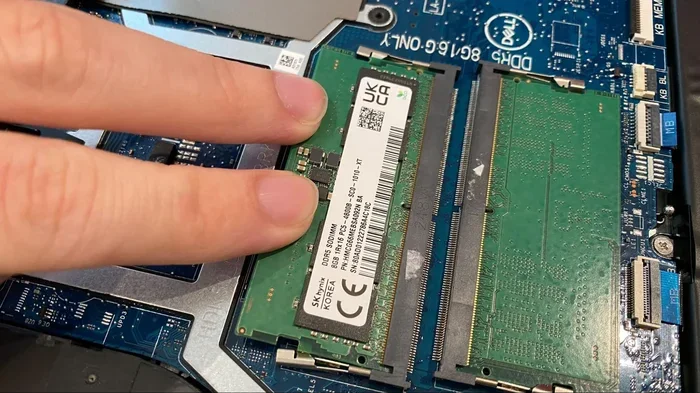
Laptops use smaller memory modules called SODIMMs. These are different from the larger DIMMs found in desktop computers. SODIMM stands for Small Outline Dual In-Line Memory Module. They come in two main generations: DDR4 and DDR5. DDR4 is the most common in laptops today, but newer models are starting to use DDR5. Always verify which generation your laptop supports before purchasing.
Matching RAM Speed and Capacity
RAM speed is measured in megahertz (MHz). Higher numbers mean faster data transfer. However, your laptop’s processor and motherboard set the maximum speed it can support. Always match the speed of your new RAM to your existing module for best results. Most users find 8GB to 16GB of RAM is enough for everyday tasks. Power users and gamers may want 32GB for heavy workloads like video rendering or running virtual machines.
Step-by-Step Guide to Upgrading Laptop RAM
Installing new RAM in your laptop is easier than you might think. With the right tools and a little care, you can do it in under 30 minutes. This laptop upgrade guide walks you through each step clearly.
Preparing for the Upgrade
Before you start, gather a small Phillips-head screwdriver and your new SODIMM module. Back up your important files. Power off your laptop completely and unplug it from the charger. Remove the battery if your model allows it. Working on a hard, clean surface helps prevent accidents and keeps your components safe during the process.
Installing the New RAM
Locate the RAM access panel on the bottom of your laptop. Use your screwdriver to remove the screws. Carefully remove the panel. You will see the RAM slots. Press the metal clips on either side of the existing module to release it. It will pop up at an angle. Remove it gently. Align the notch on your new SODIMM with the slot. Insert it at a 45-degree angle and press down firmly until the clips click into place. Replace the panel and screws. Power on your laptop and check that the new memory is recognized by the system.
Common Mistakes to Avoid When Upgrading RAM
Even simple upgrades can go wrong if you are not careful. Here are the most common mistakes users make during a laptop memory upgrade.
Buying Incompatible Memory
The biggest mistake is purchasing the wrong type of RAM. Not all SODIMMs fit all laptops. Always double-check your laptop model’s RAM specifications before buying. Mixing DDR4 and DDR5 modules will not work. Even if they physically fit, the system will not recognize them properly. Stick to the exact type and generation your laptop requires for reliable performance.
Skipping the Grounding Step
Static electricity can damage sensitive computer components. Always touch a metal surface before handling RAM modules. Some people use anti-static wrist straps for extra safety. It is a small step that can save you from costly damage. Taking this precaution protects both your new RAM and your laptop’s motherboard from electrostatic discharge.
How Much RAM Does Your Laptop Really Need?
The right amount of RAM depends on what you use your laptop for. Upgrading RAM on a laptop makes the most sense when your current memory is holding you back. Understanding your usage patterns helps you choose the right RAM capacity for your needs.
For web browsing, document editing, and streaming, 8GB of RAM works well. If you edit photos, run virtual machines, or play modern games, 16GB is the sweet spot. Professionals working with video or 3D modeling may need 32GB or more. Check your current usage in Task Manager. If your memory usage regularly hits 80 percent or more, an upgrade will make a noticeable difference in your daily workflow.
Quick Tips for Maximum Performance
- Match both RAM sticks: If your laptop has two slots, install identical modules for dual-channel memory performance.
- Check your speed: Do not buy RAM faster than your laptop’s motherboard can handle.
- Keep the old RAM: If you are replacing all your memory, keep the old module as a backup.
- Clean contacts gently: Use a soft eraser on RAM gold contacts if your laptop has issues recognizing it.
Conclusion
So, can you upgrade RAM on a laptop? In most cases, the answer is yes. Upgrading your laptop memory is a simple, cost-effective way to boost speed and multitasking ability. Just confirm your laptop supports upgrades, buy compatible RAM, and follow the installation steps carefully. Whether you are a student, a professional, or a casual user, more RAM can transform your daily computing experience. Give your laptop the memory boost it deserves and enjoy a faster, smoother workflow every day.
Frequently Asked Questions
Can I upgrade RAM on any laptop?
No, not every laptop allows RAM upgrades. Some models have memory soldered directly to the motherboard, which means it cannot be replaced or expanded. Always check your specific model’s specifications before purchasing any RAM. Ultra-thin and convertible laptops are the most common models with non-upgradeable memory.
How do I know what type of RAM my laptop needs?
You can check your laptop’s specifications on the manufacturer’s website or use free tools like Crucial’s System Scanner. These tools detect your exact model and recommend compatible SODIMM modules. Pay attention to the RAM generation (DDR4 or DDR5), speed, and capacity listed in your laptop’s manual.
Is it safe to upgrade laptop RAM yourself?
Yes, upgrading laptop RAM yourself is safe as long as you follow proper precautions. Always power off your laptop, unplug it, and remove the battery if possible. Touch a metal surface to discharge static electricity before handling RAM modules. Work on a clean, hard surface and handle the SODIMM sticks gently by the edges.
How much does a laptop RAM upgrade cost?
A laptop RAM upgrade is one of the most affordable computer improvements you can make. A single 16GB SODIMM stick typically costs between $30 and $80 depending on the brand and speed. DDR5 modules tend to cost a bit more than DDR4. Compare prices from reputable retailers to find the best deal for your specific RAM type.
Will upgrading RAM make my laptop faster?
Yes, upgrading RAM can significantly improve laptop performance, especially if you currently have 4GB or 8GB. More memory allows your laptop to handle multiple apps and browser tabs without slowing down. You will notice faster multitasking, smoother app switching, and better performance in memory-intensive tasks like video editing and gaming.
Can I mix different brands of RAM in my laptop?
It is possible to mix RAM brands, but it is not always recommended. Using identical modules from the same brand, speed, and capacity ensures the best compatibility and dual-channel performance. If you must mix, try to match the speed and generation as closely as possible. Mismatched RAM can sometimes cause boot errors or reduced performance.