How to Get More RAM on Your Laptop for Better Performance
Want to know how to get more RAM on your laptop? This guide walks you through every step, from checking your current memory to choosing the right upgrade. You will learn simple ways to boost your laptop’s speed and get more done without slowdowns.
Is your laptop running slow? Do apps take forever to open, or does your screen freeze when you have too many tabs open? The problem might be simple: you need more computer memory.
How to get more RAM on your laptop is a question many people ask. The good news is that it is often easier and cheaper than you think. Whether you are a student, a remote worker, or a casual gamer, adding memory can transform how your machine handles daily tasks.
RAM, or random access memory, is the short-term memory your laptop uses to run programs. More RAM means smoother multitasking, faster load times, and fewer frustrating delays. In this guide, we will show you exactly how to get more RAM on your laptop, step by step.
Key Takeaways
- Check your current RAM first: Know what you have before buying anything.
- Verify upgrade compatibility: Not all laptops allow RAM upgrades.
- Choose the right type and speed: DDR4 or DDR5 depends on your laptop model.
- Follow a simple installation process: You can do it yourself in minutes.
- Explore alternatives like virtual memory: Helps if you cannot upgrade physically.
- Avoid common mistakes: Like buying incompatible RAM or skipping backups.
📑 Table of Contents
Understanding Your Current RAM
Before you buy anything, you need to know what you already have. Every laptop comes with a set amount of memory installed. Most budget laptops ship with 4GB or 8GB, which works fine for basic tasks like browsing and word processing.
But if you edit videos, run heavy software, or keep many browser tabs open, 8GB may not be enough. Here is how to check your current RAM on Windows:
- Press Ctrl + Shift + Esc to open Task Manager.
- Click on the Performance tab.
- Select Memory from the left sidebar.
- Look at the top right corner for your total RAM.
On a Mac, click the Apple logo, choose About This Mac, and look for the memory section. This tells you the type, speed, and amount of memory installed.
Why RAM Matters for Performance
Think of RAM as your laptop’s workspace. The more desk space you have, the more papers you can spread out at once. When RAM fills up, your laptop starts using your hard drive as temporary storage, which is much slower. This causes lag, stuttering, and long wait times.
Checking If Your Laptop Can Be Upgraded
Not every laptop lets you add more RAM. Some modern ultrabooks have memory soldered directly to the motherboard. Before you spend money, confirm that your laptop supports upgrades.
How to Find Your Laptop’s RAM Specs
You can use free tools like Crucial System Scanner or Kingston Memory Finder. These tools analyze your laptop and tell you exactly what type of RAM it takes and how many RAM slots are available.
Another option is to check your laptop’s manual or the manufacturer’s website. Look for terms like maximum memory support and number of RAM slots. If your laptop has only one slot and it is already full, you may need to replace the existing stick rather than add a second one.
Choosing the Right RAM for Your Laptop
Once you know your laptop supports upgrades, the next step is picking the right memory. This part trips up many people, so pay close attention.
DDR4 vs DDR5 RAM
Most laptops built after 2020 use DDR4 RAM. Newer models may support DDR5 RAM, which is faster but also more expensive. Check your laptop’s specifications to confirm which type it needs. Mixing DDR4 and DDR5 will not work.
RAM Speed and Capacity
RAM speed is measured in megahertz (MHz). Higher numbers mean faster data transfer, but the difference is small for everyday use. For most users, 16GB to 32GB of memory is the sweet spot. Here is a quick guide:
- 8GB: Basic use, web browsing, office tasks.
- 16GB: Multitasking, light gaming, moderate creative work.
- 32GB: Heavy video editing, programming, intensive gaming.
Single Channel vs Dual Channel
If your laptop has two RAM slots, installing two sticks of the same size activates dual channel mode. This improves memory bandwidth and can boost performance by 10 to 20 percent. Always match the brand, size, and speed of your RAM sticks for the best results.
Step-by-Step RAM Upgrade Process
Upgrading your RAM is one of the easiest laptop repairs you can do at home. You do not need to be a tech expert. Follow these steps carefully for a smooth upgrade process.
What You Will Need
- A compatible RAM stick (or two)
- A small Phillips-head screwdriver
- An anti-static wrist strap (optional but recommended)
- A clean, flat workspace
The Installation Steps
Step 1: Turn off your laptop and unplug it. Remove the battery if possible.
Step 2: Ground yourself by touching a metal surface. This prevents static electricity from damaging components.
Step 3: Locate the RAM access panel on the bottom of your laptop. Use your screwdriver to remove the screws.
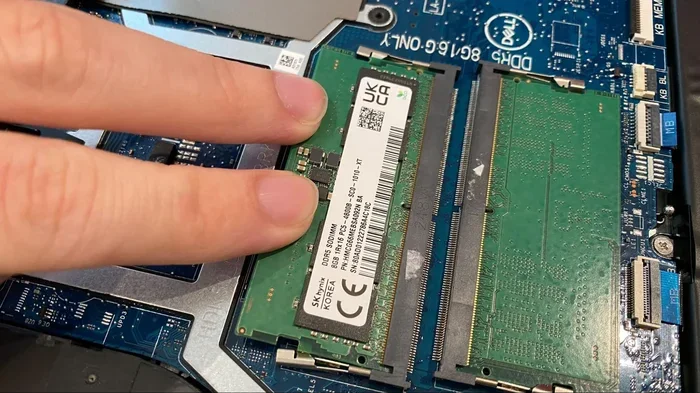
Step 4: Gently push the side clips on the existing RAM stick outward. The stick will pop up at an angle.
Step 5: Align your new RAM stick with the slot at a 45-degree angle. Press it down firmly until the clips click into place.
Step 6: Replace the access panel, screw it back in, and reconnect the battery.
Step 7: Power on your laptop and check Task Manager to confirm the new memory is recognized.
Alternative Ways to Boost Memory
What if your laptop does not support RAM upgrades? Do not worry. There are still ways to improve memory performance without opening your laptop.
Use Virtual Memory
Windows lets you set a page file on your hard drive to act as extra memory. Go to Settings > System > About > Advanced system settings > Performance Settings > Advanced > Virtual Memory. Increasing this can help when RAM is full, though it will not be as fast as physical memory.
Close Unnecessary Programs
Many background apps eat up RAM without you knowing. Open Task Manager and sort by memory usage. Close programs you are not actively using. This simple habit can free up significant memory and improve system performance.
Disable Startup Programs
Some apps launch automatically when you turn on your laptop. Go to Task Manager > Startup tab and disable anything you do not need right away. This reduces the memory load from the moment you start working.
Common Mistakes to Avoid
Even with the best intentions, people make mistakes when upgrading RAM. Here are the most common ones to watch out for:
- Buying incompatible RAM: Always double-check the type, speed, and maximum capacity your laptop supports before purchasing.
- Forgetting to ground yourself: Static discharge can destroy memory modules. Use an anti-static mat or wrist strap.
- Mixing different RAM brands: While it sometimes works, matching brands and specs ensures the best stability.
- Ignoring BIOS updates: A BIOS update can improve RAM compatibility and performance. Check your manufacturer’s website before upgrading.
Conclusion
Learning how to get more RAM on your laptop is one of the best investments you can make for your computer. It costs a fraction of what a new laptop would, and the performance improvement is immediate and noticeable. Whether you choose to upgrade physically or optimize your current setup, the steps in this guide will help you get started.
Take a few minutes to check your current memory, confirm compatibility, and pick the right RAM. Your laptop will thank you with faster speeds, smoother multitasking, and fewer frustrating slowdowns. Start your memory upgrade today and enjoy a better computing experience.
Frequently Asked Questions
Can I upgrade RAM on any laptop?
No, not all laptops allow RAM upgrades. Many thin and lightweight models have soldered memory. Check your laptop’s specifications or use a scanner tool before purchasing RAM to confirm compatibility.
How much RAM do I actually need?
For most users, 16GB is the ideal amount. It handles multitasking, light gaming, and creative work with ease. If you do heavy video editing or programming, consider 32GB for the best experience.
Is it hard to upgrade laptop RAM yourself?
Not at all. The process usually takes less than 15 minutes. You just need a small screwdriver and a little patience. Just make sure to ground yourself first to avoid static damage.
Will adding more RAM speed up my laptop?
Yes, if your current RAM is causing bottlenecks. More RAM helps with multitasking and running demanding applications. However, it will not fix issues caused by a slow processor or an old hard drive.
Can I mix different RAM sticks together?
You can, but it is not recommended. Matching the same brand, size, and speed ensures the best performance and stability. Mixing RAM can sometimes cause conflicts or reduce overall system performance.
How do I know if my laptop needs more RAM?
If your laptop slows down when you open multiple apps, or if Task Manager shows high memory usage during normal tasks, you likely need more RAM. Frequent freezing or crashing are also clear signs that your current memory is insufficient.