How to Deactivate Laptop Mouse and Fix Cursor Issues
Struggling with a glitchy touchpad or cursor that won’t cooperate? This guide shows you exactly how to deactivate laptop mouse settings on both Windows and Mac, plus proven fixes for common cursor problems. You’ll learn simple steps, expert tips, and quick solutions that restore smooth control in minutes.
Have you ever been in the middle of typing an important email, and suddenly your laptop cursor starts jumping all over the screen? It is incredibly frustrating, right? The truth is, deactivating your laptop mouse or touchpad can solve a ton of problems. Whether your pointer is frozen, glitchy, or just getting in the way, knowing how to turn it off gives you instant control. This guide walks you through every method step by step.
You do not need to be a tech expert to make these changes. In fact, most fixes take less than two minutes. We will cover Windows and Mac systems, share keyboard shortcuts, and dive into common cursor issues. By the end, you will know exactly how to stop your touchpad from causing trouble and keep your work flowing smoothly.
Key Takeaways
- Easy deactivation: You can turn off your laptop touchpad in just a few clicks through settings or keyboard shortcuts.
- Cross-platform help: Both Windows and Mac users have built-in options to disable the laptop mouse.
- Cursor fixes are simple: Most cursor jumping or freezing issues resolve with driver updates or sensitivity tweaks.
- Keyboard shortcuts save time: Function key combos let you toggle the touchpad on and off instantly.
- Prevention works: Regular driver updates and clean surfaces keep your laptop pointer running smoothly.
- External mice help diagnose: Plugging in a USB mouse can reveal whether the problem is hardware or software.
📑 Table of Contents
Why You Might Need to Deactivate Laptop Mouse
Your laptop touchpad is handy, but it is not perfect. Sometimes it causes more problems than it solves. Understanding why you might want to turn it off helps you take action faster.
Cursor Jumping While Typing
One of the most common issues is accidental touches. When you type, your palms can brush the touchpad and move the cursor unexpectedly. This happens because the laptop touchpad is very sensitive. Deactivating it while you type eliminates this annoyance completely.
Cursor Freezing or Lagging
A frozen cursor can bring your work to a halt. This often happens when the mouse driver needs an update or when the touchpad conflicts with an external device. Turning off the touchpad lets you use a USB mouse without interference.
Palm Rejection Failures
Many modern laptops claim to have palm rejection. But it does not always work well. If your cursor keeps misbehaving, disabling the touchpad is a reliable workaround that instantly fixes the problem.
How to Deactivate Laptop Mouse on Windows
Windows makes it easy to turn off your touchpad. You can use the Settings app, Device Manager, or even a keyboard shortcut. Let us look at each method.
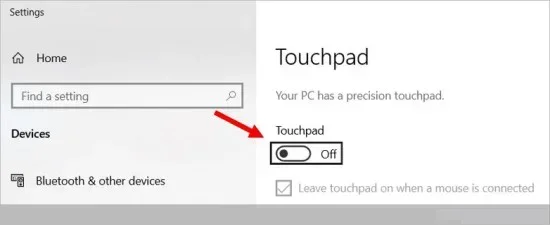
Method 1: Through Settings
- Click the Start menu and open Settings.
- Go to Bluetooth and Devices, then select Touchpad.
- Toggle the touchpad switch to Off.
That is it. Your laptop mouse is now disabled. This method works on most Windows 10 and Windows 11 machines.
Method 2: Using Device Manager
If the Settings option is not available, Device Manager is your next best tool.
- Right-click the Start button and choose Device Manager.
- Expand the Mice and other pointing devices section.
- Right-click your touchpad device and select Disable device.
- Confirm your choice.
Your touchpad will now be turned off. You can re-enable it anytime by following the same steps and selecting “Enable device.”
Method 3: Keyboard Shortcut
Many laptops have a quick shortcut to toggle the touchpad. Look for a small icon on your function keys, usually F6, F7, or F9. Press and hold the Fn key plus that function key to turn the touchpad on or off. Check your laptop manual if you are unsure which key to use.
How to Deactivate Laptop Mouse on Mac
Mac users also have straightforward options. Apple keeps things simple, and turning off your trackpad follows a clear path.
Through System Settings
- Click the Apple menu and choose System Settings.
- Go to Trackpad in the sidebar.
- Toggle off Trackpad to disable it.
On older macOS versions, you will find this under System Preferences instead of System Settings. The process is the same.
Using Accessibility Options
Mac also lets you adjust trackpad behavior through Accessibility settings. Go to System Settings > Accessibility > Pointer Control. Here you can slow down or turn off trackpad gestures. This is a great option if you want partial control instead of a full disable.
How to Fix Common Cursor Issues
Deactivating the touchpad is one solution, but sometimes you just need to fix the cursor problem directly. Here are the most common issues and how to solve them.
Cursor Jumping Around the Screen
Cursor jumping is usually caused by a dirty touchpad or outdated drivers. Wipe your touchpad with a soft, dry cloth first. If that does not work, update your mouse driver through Device Manager. Right-click your touchpad device, select Update driver, and follow the prompts.
Cursor Not Moving at All
If your laptop pointer is completely stuck, try these steps:
- Check that your touchpad is not disabled.
- Restart your laptop to reset the pointer settings.
- Plug in an external USB mouse to test if the issue is hardware-related.
- Update or reinstall your touchpad driver.
Slow or Lagging Cursor
A slow cursor often points to mouse sensitivity settings that need adjusting. Go to Settings > Bluetooth and Devices > Touchpad and adjust the cursor speed slider. Moving it up makes the pointer faster; moving it down slows it down.
Quick Tips to Prevent Mouse Problems
Prevention is always better than fixing problems after they happen. Here are simple habits that keep your touchpad working well.
- Keep your touchpad clean. Wipe it gently every few days to remove oils and dust.
- Update your drivers regularly. Set a monthly reminder to check for driver updates.
- Use an external mouse for heavy tasks. Gaming or graphic design work benefits from a dedicated mouse.
- Adjust sensitivity settings. Find a balance that feels natural and reduces accidental clicks.
- Restart your laptop weekly. This clears temporary glitches that can affect the touchpad.
When to Seek Professional Help
Most touchpad issues are software-related and easy to fix. But sometimes, the problem is hardware. If your touchpad is physically damaged, unresponsive after a full driver reinstall, or works only intermittently, it is time to see a professional. A technician can check for loose connections or faulty components inside your laptop.
Before visiting a repair shop, try plugging in an external USB mouse. If the external mouse works perfectly but the touchpad does not, the issue is likely with the touchpad itself, not your system settings.
Final Thoughts
Learning how to deactivate laptop mouse settings is a simple skill that saves you time and frustration. Whether you are dealing with a jumping cursor, a frozen pointer, or just want to type without interruptions, the methods in this guide cover you. Start with the quick fixes, update your drivers, and adjust your settings. Most cursor problems disappear with just a few clicks.
Keep your touchpad clean, stay on top of driver updates, and do not hesitate to use an external mouse when needed. Your laptop should work for you, not against you. Apply these tips today and enjoy a smoother, more responsive computing experience.
Frequently Asked Questions
Can I use my laptop without the touchpad enabled?
Yes, absolutely. You can connect an external USB mouse or use a Bluetooth mouse. Your laptop works perfectly fine with just an external pointing device. Many people prefer this setup for desk use.
How do I re-enable my laptop touchpad after deactivating it?
Go back to the same settings you used to turn it off. In Windows, visit Settings > Bluetooth and Devices > Touchpad and toggle it on. On Mac, go to System Settings > Trackpad and enable it. The keyboard shortcut method also works to toggle it back on.
Why does my cursor keep jumping when I type?
This happens because your touchpad is too sensitive and picks up palm movements while you type. Deactivating the touchpad while typing or adjusting the sensitivity settings usually fixes this problem right away.
Is it safe to disable the touchpad through Device Manager?
Yes, it is completely safe. Disabling the touchpad in Device Manager only turns it off temporarily. You can always re-enable it by going back to Device Manager and selecting “Enable device.” No data or hardware is affected.
What should I do if my cursor is frozen and nothing works?
First, try restarting your laptop. If that does not help, plug in an external USB mouse and use it to navigate to Settings. From there, you can update drivers or adjust pointer settings. A restart often clears temporary software glitches that cause cursor freezes.
Do all laptops have a keyboard shortcut to disable the touchpad?
Most laptops do, but not all. Look for a small touchpad icon on your function keys, typically F6, F7, or F9. If your laptop does not have this feature, you can always use the Settings or Device Manager method instead.